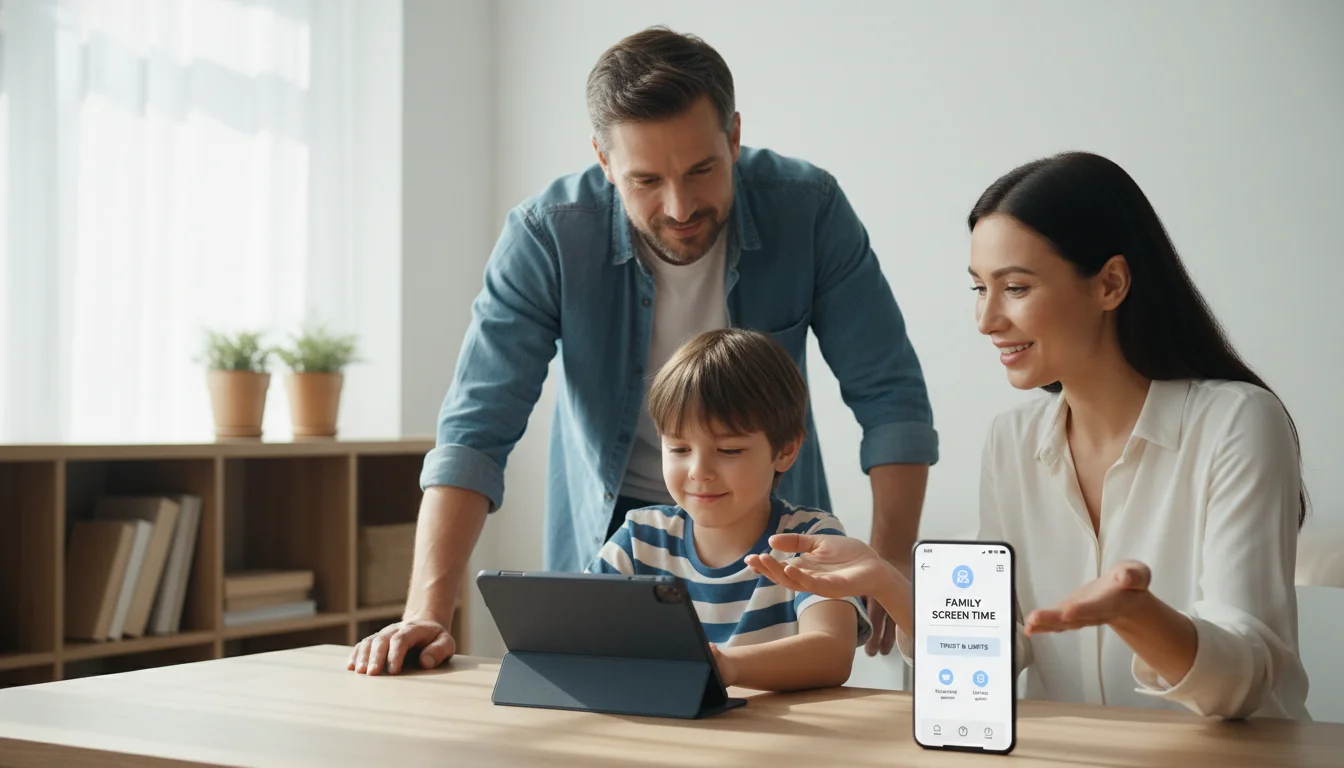
Beyond the Lock and Key: Choosing a Parental Control App That Fosters Trust, Not Just Surveillance
If you’re reading this, I know the feeling. It’s that tightness in your chest when you see your child’s head bent over a screen for the third hour. It’s the nagging worry about what they might stumble upon, who they might be talking to, or how their developing brain is being shaped by endless scrolls. You’ve likely typed “best parental control apps” into a search bar with a mix of hope and desperation, seeking a magic button to make it all safe and manageable.
First, let me validate that. Your concern is not overreaction; it’s a modern form of caregiving. In the physical world, we teach street safety, we childproof our homes, and we meet our children’s friends. The digital landscape is simply another environment where our children live and explore, and it requires the same thoughtful guidance.
But here’s the critical psychological shift we must make, one that most app reviews miss: Parental control tools are not just technical filters; they are relationship tools. The wrong approach can breed resentment, secrecy, and power struggles. The right approach, supported by the right technology, can build trust, teach digital citizenship, and open lines of communication.
As a behavioral psychologist, I don’t view these apps as a way to control your child, but as a scaffolding mechanism. Just as training wheels provide support while a child learns to bike, a well-chosen app provides structure while a child learns to navigate the digital world responsibly. The ultimate goal is always to remove the scaffolding, not to make it a permanent cage.
The Three Pillars of an Effective Digital Safety Strategy
Before we dive into specific apps, we must establish the framework. An app is just one component. My clinical work with families shows that sustainable digital wellness rests on three pillars:
- The Human Connection Pillar (Most Important): This is the ongoing, open dialogue about online life. It’s asking, “What was the funniest thing you saw online today?” or “Has anything ever made you feel uncomfortable in a game chat?” This pillar is built on time, empathy, and non-judgmental listening.
- The Family Contract Pillar: This is your collaboratively created set of rules. It covers device-free zones (like the dinner table and bedrooms), device-free times (like the hour before bed), and agreed-upon expectations for behavior and content. An app can help enforce this contract, but it cannot replace the family meeting where it’s created.
- The Technological Tool Pillar: This is the parental control app. Its job is to objectively uphold the boundaries set in your Family Contract, reducing daily negotiation fatigue and providing a safety net. It works for you so you can focus on being a parent, not a prison warden.
The apps reviewed below are evaluated through this lens: How well do they serve as a tool that supports Pillars 1 and 2?
Evaluating the Contenders: A Behavioral Psychologist’s Comparison
Not all apps are created equal. Some are purely restrictive, while others are designed with education and gradual independence in mind. This table breaks down key contenders based on features that matter for long-term behavioral outcomes.
| App Name | Core Philosophy | Key Features for Development | Potential Psychological Pitfall | Best For Families Who… |
|---|---|---|---|---|
| Bark | Proactive alerting on potential risks (bullying, depression, predators) across texts, email, and 30+ apps. | Monitors for signs of emotional distress, not just screen time. Alerts parents to concerning content while preserving some privacy. | Can cause parental anxiety if alerts are frequent without context. Requires calm, communicative follow-up. | Prioritize emotional safety and open communication over micromanaging screen minutes. Have teens exploring social spaces. |
| Qustodio | Comprehensive visibility and granular control across all devices and platforms. | Extremely detailed activity reports, strong time scheduling, panic button for child to alert parents. | The sheer amount of data can tempt parents into over-surveillance, undermining trust. Interface can feel overwhelming. | Want a highly customizable “one-stop-shop” for a wide age range, from young children to teenagers. |
| Google Family Link / Apple Screen Time | Ecosystem-based management, integrated directly into the device’s OS. | Free, simple to set up, manages core device functions (app installs, downtime). Encourages child requests for more time/apps. | Limited cross-platform control. Can be easily circumvented by tech-savvy kids. Features are basic compared to dedicated apps. | Are starting their journey, have mostly one type of device (all Android or all Apple), and want a low-cost entry point. |
| Circle Home Plus | Network-based management that covers every device connected to your home Wi-Fi. | Manages screen time by pausing the internet itself. Works on game consoles, smart TVs, and friends’ devices on your network. | Doesn’t monitor specific app content or off-network activity (e.g., cellular data). It’s a broad brush, not a fine-tipped pen. | Need to manage a complex ecosystem of non-phone devices (PlayStation, tablets) and want simple, universal time limits. |
The “Gradual Release of Responsibility” Model: Matching App Features to Developmental Stage
A critical mistake is using the same restrictive controls for a 9-year-old and a 16-year-old. Just as we grant more physical independence with age, we must plan for digital independence. I advocate for the Gradual Release of Responsibility Model, adapted from educational theory for digital life.
- Stage 1: Guided Exploration (Ages ~5-10): Here, the app acts as a firm boundary-setter. Use strict time limits, content filters, and app approval lists. The goal is safety and establishing basic routines. Think of it as holding their hand tightly while crossing a busy street.
- Stage 2: Supervised Practice (Ages ~11-14): This is the training ground. Begin to relax absolute time limits in favor of flexible schedules (e.g., 2 hours total, but they manage it). Use apps like Bark to monitor for risks while allowing more social app access. This is the stage for the most important conversations about algorithms, digital footprints, and kindness online. You’re now walking beside them, pointing out landmarks and potential hazards.
- Stage 3: Coaching for Independence (Ages 15+): Shift from controller to coach. Disable most content filters (they’ve likely found workarounds anyway). Use apps primarily for transparency—you can see their screen time report if they can too. The focus moves to self-regulation. The “panic button” or check-in features become more relevant than shutdown features. You’re now watching from the porch as they navigate the neighborhood, ready if they call for help.
Red Flags and Green Flags: What to Look For Beyond the Feature List
When choosing your tool, please consider these psychological and practical factors:
Green Flags:
- Transparency for the Child: Does the app have a child-facing dashboard that shows them their own usage? This promotes self-awareness, not just covert monitoring.
- Request & Negotiation Features: Can your child send a request for more time or a new app? This builds negotiation skills and reduces “because I said so” dynamics.
- Focus on Positive Reinforcement: Some apps allow you to award bonus time for completed chores or offline activities. This ties screen time to responsibility.
Red Flags:
- Stealth Mode as a Selling Point: Any app that boasts complete invisibility on the child’s device is setting you up for a catastrophic breach of trust when it’s inevitably discovered.
- No Room for Dialogue: If the app is purely about top-down blocking with no override or request system, it may stifle the very communication you need to foster.
- One-Size-Fits-All Presets: Be wary of apps that don’t allow deep customization. Every child’s temperament and your family’s values are unique.
Implementing Your Chosen App: The Trust-First Protocol
How you introduce the app is as important as which one you choose. Follow this protocol to minimize resistance and maximize buy-in:
1. The Family Summit: Call a meeting. Explain, “We’re all struggling to balance our screen time, and we need some help as a family. We found this tool that can help us all stick to the boundaries we agree on.”
2. Co-Create the Rules: Before installing anything, finalize your Family Digital Contract. Let your child have input on reasonable time limits and device-free times.
3. Install Together: Sit side-by-side. Install the app on both your phone and theirs. Show them the dashboard, explain what data you will see, and what you won’t (e.g., “I’ll see you used 45 minutes on YouTube, but I won’t read your private texts unless there’s a safety alert”).
4. Frame it as a Helper: “This isn’t because I don’t trust you. It’s because the apps and games are designed to be super sticky. This helps us both remember our agreement.”
5. Schedule Regular Check-Ins: Make it routine. Every Sunday, look at the weekly reports together. Ask, “How did that feel? Did you miss having your phone at night, or did you sleep better?” Use the data as a conversation starter, not a weapon.
Remember, the goal is not to raise a child who behaves well only when the controls are active. The goal is to use these tools to guide them toward becoming a thoughtful, self-regulating digital citizen. For further reading on the science of screen time and adolescent development, I often recommend parents review the research summaries from the American Psychological Association. For a deeper dive into the design ethics of the technology itself, the Center for Humane Technology provides invaluable context.
FAQ: Your Top Questions on Parental Control Apps, Answered
Q: Won’t using these apps just make my child better at hiding their activity?
A: It can, if implemented punitively and secretly. This is why the “Trust-First Protocol” and open installation are non-negotiable. The app should be a transparent tool for agreed-upon family goals, not a secret spyware. When a child is part of the process, the incentive to deceive is drastically lowered.
Q: My teen says this is a violation of their privacy. How do I respond?
A: Acknowledge their feeling. It’s a valid point. Then reframe: “Privacy is important, and you are entitled to more of it as you show responsibility. My job is to keep you safe while you learn. We’re not reading your diary; we’re making sure you’re not walking into dangerous digital neighborhoods. Let’s agree on what ‘safety alerts’ look like versus ‘private conversations.’” This is a complex negotiation, central to modern parenting.
Q: Are free apps like Apple Screen Time good enough?
A> They are an excellent starting point, especially for younger children or if your family is all within one ecosystem. Their limitation is often a lack of depth and cross-platform control. For many families, they serve as a sufficient “technological pillar.” If you find yourself needing more nuanced controls or content monitoring as your child ages, you can then graduate to a paid service.
Q: How do I manage screen time on platforms like YouTube or Roblox that are inherently endless?
A> This is where granular app-specific timers (found in Qustodio, Family Link) are crucial. You can set a 30-minute daily limit on YouTube, for instance. When time is up, access pauses. This teaches budgeting within a single appealing platform. Pair this with conversations about why these platforms are designed to be endless—the “rabbit hole” algorithm—to build their own critical awareness.
The most powerful parental control will always be the connection you nurture offline. The shared laugh over a board game, the uninterrupted conversation in the car, the feeling of being fully seen and heard—these are the experiences that build a child’s internal compass. Let the app handle the logistics of limits. You focus on the infinitely more important work of filling the time you reclaim with connection, curiosity, and joy.